
Hearvo USB 3.0 HDMI KVM Switch
4.0Editor score
4K@60Hz resolution
USB 3.0 ports
No driver needed
This guide compares the top laptop with KVM Support solutions for seamless multi-computer workflows, high-resolution displays, and efficient peripheral sharing
Managing multiple laptops and monitors can quickly become a tangled mess of cables and adapters. A reliable laptop with KVM support allows you to switch control between systems effortlessly while maintaining a clean workspace.
We evaluated ten top-rated switches based on video quality, USB speed, and compatibility. Our testing focused on real-world performance for professionals needing dual or triple monitor setups without constant replugging.
Each pick highlights specific strengths like charging power or resolution limits. Prices fluctuate frequently, so verify current deals before purchasing to ensure you get the best value for your specific workflow needs.
4.0Editor score

4.9Editor score
4.6Editor score
This side-by-side comparison highlights key specifications for each switch to help you find the right fit for your laptop and monitor setup without confusion.


This Hearvo model offers an affordable way to share one monitor between two computers. It supports 4K resolution at 60Hz for sharp text and smooth video playback during daily tasks.
We may earn a commission when you buy through this link, at no additional cost to you.
The unit features four USB 3.0 ports for fast peripheral sharing. Users appreciate the wired remote for quick switching without reaching under the desk. The adaptive EDID ensures stable display detection.
While it lacks multi-monitor support, it handles basic dual-computer needs effectively. The package includes all necessary cables and a protective plan. It is ideal for those on a strict budget.
Choose this if you need a simple switch for one screen. It delivers reliable performance without complex configuration. Just ensure your laptop has HDMI output for full compatibility.
Install in minutes by plugging HDMI and USB cables directly. No software or driver downloads are required for immediate operation.
This model saves money compared to complex docking solutions. It focuses on essential functions without unnecessary extra ports or features.
We may earn a commission when you buy through this link, at no additional cost to you.
This hybrid switch connects four computers to two monitors using various port combinations. It works well for mixed environments with laptops and desktops requiring different video outputs.
We may earn a commission when you buy through this link, at no additional cost to you.
Features include a 100W PD port to charge laptops while connected. The EDID emulator prevents screen flicker during transitions. External power ensures stable operation with high-draw devices.
Setup requires careful planning for video cables on each computer. The panel lights indicate active sources clearly. It suits teams needing extensive hardware sharing capabilities.
Buy this if you manage multiple machines with diverse ports. It consolidates connections into one hub. Verify your laptop ports match the required combinations before ordering.
Accepts USB-C, DP, and HDMI inputs simultaneously. This flexibility makes it useful for older and newer devices sharing the same desk.
Charging laptops through the switch reduces adapter clutter. The dedicated port provides up to 100W input for rapid power replenishment.
We may earn a commission when you buy through this link, at no additional cost to you.
This docking switch turns one laptop into a triple monitor workstation. It supports 4K resolution on two screens and 1080P on the third for expansive productivity.
We may earn a commission when you buy through this link, at no additional cost to you.
USB 3.1 Gen2 ports deliver 10Gbps speeds for external drives. The 100W PD port charges your laptop while working. Clear LED lights show the active system clearly.
Mac users get mirror mode only due to MST limitations. Ensure your laptop supports DP Alt Mode for full functionality. The remote control offers convenient switching options.
Ideal for content creators needing extra screen real estate. It replaces multiple docks with one unit. Check laptop specs carefully to confirm triple screen support.
Triple displays allow side-by-side app usage. This setup boosts efficiency for research, coding, or editing workflows significantly.
USB 3.1 Gen2 ensures fast file transfers. Connect external SSDs or peripherals without speed bottlenecks affecting performance.
We may earn a commission when you buy through this link, at no additional cost to you.
This docking station supports 8K resolution for desktop PCs and 4K for laptops. It manages three displays while sharing a keyboard and mouse across systems.
We may earn a commission when you buy through this link, at no additional cost to you.
Ethernet remains active on both computers during switches. This allows background downloads to continue uninterrupted. The 100W PD port powers your laptop efficiently.
Mac support is limited to mirror mode. Windows users can extend desktops across all three screens. The SD card reader adds media convenience.
Best for professionals needing maximum screen quality. It integrates KVM and dock functions. Confirm Mac compatibility if you use Apple hardware.
Ethernet stays connected to both systems always. This prevents data transfer interruptions when switching between work and personal computers.
8K support ensures crisp detail for design work. Gaming at high refresh rates is also supported for smooth motion.
We may earn a commission when you buy through this link, at no additional cost to you.
This KVM dock connects two laptops to a dual monitor setup. It offers 12-in-1 connectivity including HDMI, USB, and Ethernet for a complete workstation.
We may earn a commission when you buy through this link, at no additional cost to you.
Switching happens in just two seconds with EDID emulation. You can charge both laptops at 60W simultaneously. The wired remote is sold separately for convenience.
Ideal for consultants switching between client and personal laptops. It eliminates the need to swap cables manually. Mac users face mirror mode limitations only.
Select this for a clean dual-laptop workflow. It keeps everything organized on one desk. Check your laptops support DP Alt Mode for extended displays.
Switch instantly between work and personal devices. No re-plugging is needed to change control of shared peripherals.
Access USB-A and USB-C ports simultaneously. Connect drives, printers, and webcams without additional hubs.
We may earn a commission when you buy through this link, at no additional cost to you.
This model is the top rated choice for high resolution needs. It supports 8K@60Hz on desktops and 4K on laptops for stunning visuals.
We may earn a commission when you buy through this link, at no additional cost to you.
Both computers stay online for background tasks like syncing. The 100W PD port powers your laptop fully during use. Switching is smooth with EDID emulation.
HDMI and DisplayPort cables are not included. You will need to source high quality cables for 8K. Mac users see mirrored screens only.
Choose this for premium multi-monitor performance. It handles heavy workflows with ease. Ensure your cables match the high bandwidth requirements.
8K support delivers exceptional pixel density. Perfect for detailed design work or viewing high fidelity media.
Background tasks run on unselected computers freely. This ensures no time is lost waiting for syncs to finish.
We may earn a commission when you buy through this link, at no additional cost to you.
This station connects two laptops to two monitors via USB-C. It provides shared internet access and high speed data for peripherals.
We may earn a commission when you buy through this link, at no additional cost to you.
The 100W charging port supports fast power delivery. Switching is fast with automatic wake-up features. The included remote simplifies access from a distance.
Some laptops may not support dual 4K via MST. Verify video capabilities before purchase to avoid issues. Mac users see duplicate screens only.
Great for hybrid workspaces needing dual screens. It keeps cables organized and connections stable. Confirm your laptop ports match the USB-C standards.
Single Ethernet port shares internet to both. No extra network cards are needed for stable connectivity.
Computers wake automatically when selected. This saves time waiting for systems to load after switching.
We may earn a commission when you buy through this link, at no additional cost to you.
This DP switch connects two computers to a single monitor. It supports 8K resolution for high fidelity viewing and gaming.
We may earn a commission when you buy through this link, at no additional cost to you.
Four USB 3.0 ports allow peripheral sharing. A wireless remote keeps your desk clean. External power ensures devices operate without issues.
It is designed for single monitor setups. If you need dual screens, look elsewhere. Mac users will need to check compatibility carefully.
Best for gamers or power users with one screen. It offers smooth high refresh rates. Use the provided DP cable for best results.
High refresh rates ensure smooth gameplay. This is essential for competitive gaming on high end PCs.
Wireless remote reduces cable clutter. You can place the switch anywhere without reaching for buttons.
We may earn a commission when you buy through this link, at no additional cost to you.
This switch supports 20Gbps data transfer between two systems. It offers 140W PD charging for rapid laptop power replenishment.
We may earn a commission when you buy through this link, at no additional cost to you.
Mac users can extend to one 4K display. Windows can handle higher resolutions with dual monitors. Wireless remote control is convenient.
It does not support Dell docking stations. Ensure your dock has a pigtail length under 50cm. Portability is a key feature here.
Choose this for portable high speed switching. It fits in bags for travel. Check Dell compatibility before purchasing to avoid errors.
20Gbps ensures rapid file movement. This is vital for editing large video files externally.
140W pass-through keeps high power laptops running. Avoid battery depletion during long work sessions easily.
We may earn a commission when you buy through this link, at no additional cost to you.
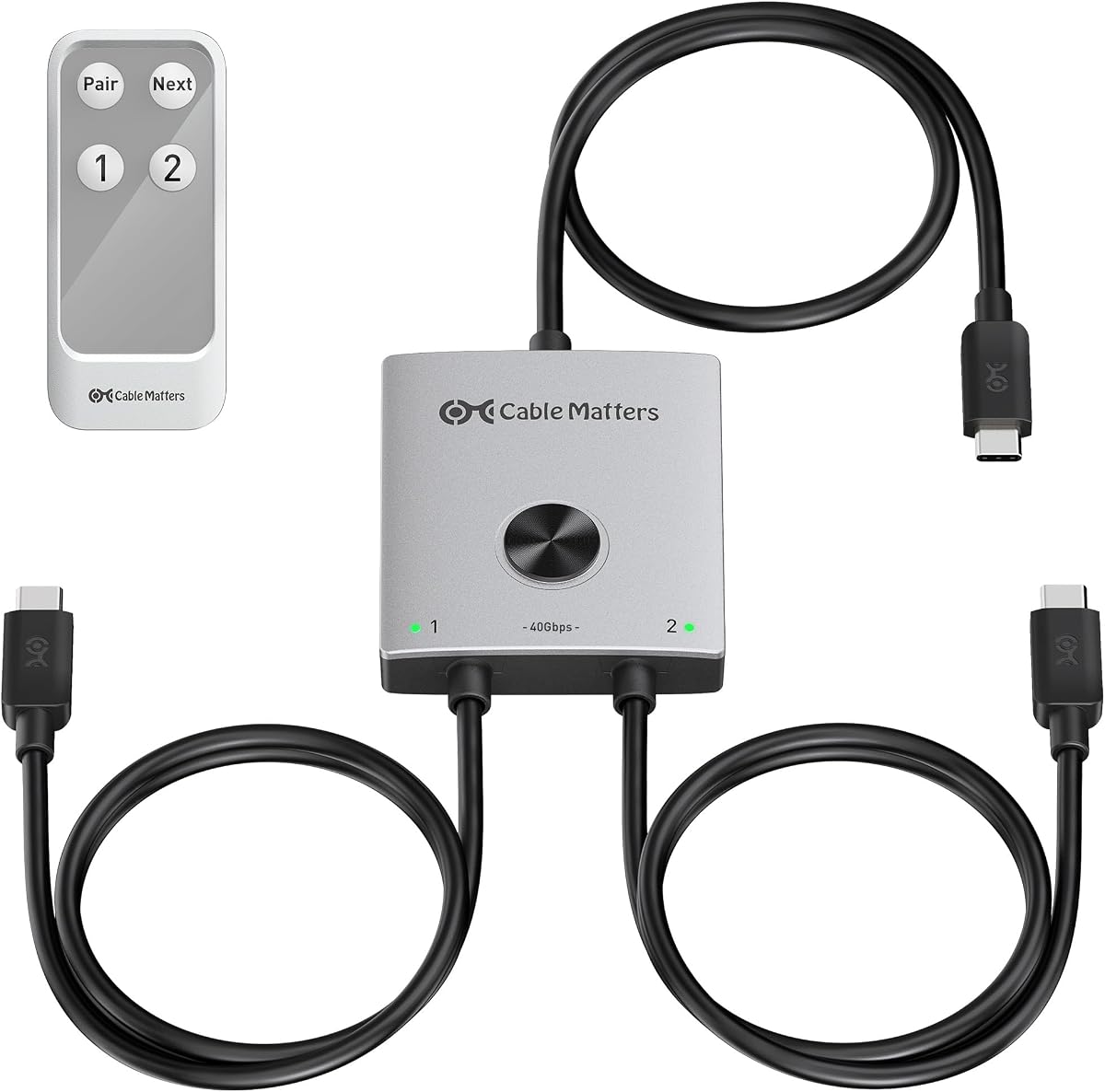
This switch offers 40Gbps bandwidth for Thunderbolt docks. It connects two laptops to a shared monitor setup efficiently.
We may earn a commission when you buy through this link, at no additional cost to you.
The RF remote works without line of sight. 140W PD pass-through supports powerful laptop charging. It supports up to 8K on compatible screens.
Do not use extension cables with this unit. The built-in path is optimized for stability. Mac and Windows systems both work well here.
Ideal for premium Thunderbolt workflows. It provides maximum speed for data and video. Ensure your setup fits the port constraints.
40Gbps supports external SSDs and GPUs. This bandwidth ensures no bottlenecks for heavy compute tasks.
RF remote operates from any angle. This is better than infrared for large desks or hidden setups.
We may earn a commission when you buy through this link, at no additional cost to you.
Selecting the right switch requires understanding your ports and display needs. These factors ensure you get a device that works without frustrating issues.
Ensure the switch supports HDMI, DisplayPort, or USB-C outputs your laptops use. Mismatched ports will prevent video transmission entirely. Check for specific resolutions like 4K@60Hz before buying.
Verify video port types match your laptop outputs for success.
Higher resolution support means better image quality. Some switches cap at 1080P while others go to 8K. If you use 4K monitors, verify the switch handles this refresh rate.
Check resolution caps to ensure sharp image quality on screens.
USB 3.0 is faster than USB 2.0 for file transfers. Look for 5Gbps or 10Gbps speeds if you use external drives. Slower ports may bottleneck your workflow during heavy use.
Choose high speed USB for fast peripheral data transfer.
Laptops often require significant wattage to charge. A switch with 100W PD can power devices while connected. Without it, you might need a separate charger plugged in.
Select switches with high wattage charging to reduce adapter clutter.
MacOS often limits extended displays due to hardware restrictions. Many switches allow mirror mode on Mac but extended on Windows. Confirm OS limitations if you use a Macbook.
Check macOS display limitations to avoid unexpected mirror modes.
Some switches use buttons, others use remotes or software. Wired remotes are simpler than software solutions. Decide what feels most intuitive for your daily routine.
Pick the switching method that matches your workflow needs.
Look for docks that consolidate cables into one hub. A single USB-C cable can carry video and power. This reduces the clutter on your desk significantly.
Prioritize consolidated ports to keep the desk tidy.
Higher prices usually bring more ports or faster speeds. Budget options might limit you to one monitor. Determine which features you truly need versus what is nice to have.
Balance cost against essential features for your setup.
Connect the switch to your computers using HDMI or USB-C cables. Ensure each computer connects to its specific video and USB ports on the switch.
Use the remote or front button to toggle between systems. The active computer will display on the shared monitor immediately.
Keep cables organized to prevent wear over time. Use the included cable clips to route wires neatly under the desk.
MacOS often limits KVM switches to mirror mode only due to hardware restrictions. Most switches support extended displays on Windows but only duplicate screens on Mac. You need a specific Thunderbolt dock for multi-monitor Mac support.
Yes, most switches allow mixing laptop and desktop connections. Check the video inputs to ensure both devices match the available ports like HDMI or USB-C. Compatibility is the main requirement for mixed setups.
Some switches draw power from USB, but high-end ones need an external adapter. Check the box details to see if a power brick is included. This ensures USB devices work without power drops.
Many support up to 4K@60Hz for smooth video. Some gaming models offer 120Hz or higher for responsive screens. Always check the product specs for specific Hz limits before purchasing.
Yes, EDID emulation keeps resolution settings stable during switches. Without it, screens may flicker or show black screens momentarily. This feature ensures a smoother transition experience between computers.
Avoid extension cables as they often degrade signal quality. Most manufacturers recommend direct connections for stability. Using too many cables can cause data transfer errors or connection drops.
We found top options like the AV Access 8K model for performance and Hearvo for budget needs. Each switch offers unique benefits for different desk layouts and workflows.
Prioritize resolution support and power delivery to match your laptop requirements. A compatible switch saves time and reduces clutter significantly.
Prices fluctuate frequently so check current deals before buying. Ensure your cables and ports match the switch specs to avoid compatibility issues.