
WAVLINK USB 3.0/USB C to HDMI
4.4Editor score
Supports Up to 6 Monitors
Universal USB 3.0 Connectivity
Compact Size With LED Status
This guide compares the top Displaylink adapters for dual 4K displays on Mac and Windows, evaluating performance, compatibility, and value for productivity
Choosing the right Displaylink adapter can transform your laptop into a powerful multi-monitor workstation. These devices use advanced technology to bypass native graphics limitations, allowing you to connect multiple high-resolution screens via a single USB port.
We have carefully evaluated ten top-rated adapters based on compatibility, video performance, build quality, and user feedback. Our analysis focuses on models that deliver stable 4K output and reliable connectivity for both macOS and Windows users in professional settings.
Each pick highlights key strengths and potential limitations to help you find the best fit for your setup. Note that product availability and pricing may change over time, so always check the latest details before purchasing your ideal adapter solution.
4.4Editor score

4.8Editor score

4.5Editor score
The following table provides a side-by-side comparison of all ten Displaylink adapters reviewed in this guide. It highlights key specifications such as port types, resolution support, and system compatibility to help you quickly identify the best match for your hardware needs.



The ACASIS Dual DP DisplayLink Adapter stands out as the top choice for users seeking reliable dual monitor support. It earns a strong 4.8 rating due to its robust performance and thoughtful design features that cater to professional workflows.
We may earn a commission when you buy through this link, at no additional cost to you.
This adapter uses advanced DisplayLink technology to bypass macOS native limitations, offering two 4K 60Hz DisplayPort outputs. The inclusion of a 100W Power Delivery port ensures your laptop stays charged while running multiple external displays.
While it requires driver installation and uses DisplayPort instead of HDMI, these trade-offs are acceptable given the high stability and performance. Users needing true extended desktop modes for productivity will find this device invaluable.
Recommend this adapter for MacBook Pro and Air users who need a secure docking solution. The premium build quality and comprehensive connectivity options make it a standout investment for any modern workstation setup.
The dual DisplayPort outputs ensure crisp 4K visuals at 60Hz, perfect for detailed design work or financial data analysis.
With three USB-A ports and high-speed charging, this hub eliminates the need for multiple dongles during daily use.
We may earn a commission when you buy through this link, at no additional cost to you.
The WAVLINK USB 3.0 to HDMI adapter offers exceptional value for budget-conscious users needing extended display capabilities. With a solid 4.4 rating, it delivers reliable performance for everyday productivity tasks without breaking the bank.
We may earn a commission when you buy through this link, at no additional cost to you.
This adapter supports up to six monitors on PCs, making it a versatile choice for large workspaces. It includes audio inputs and works with Windows macOS and ChromeOS systems using standard USB 3.0 ports.
While resolution is capped below 4K and the build is functional rather than premium, the price makes these trade-offs worthwhile. It is an excellent entry-level solution for expanding screen real estate.
Buy this if you need a simple affordable way to add extra screens. The long warranty and wide compatibility ensure peace of mind for users upgrading their office setup on a tight budget.
The ability to connect up to six monitors makes this adapter unique for users needing extensive screen space.
Built-in microphone and earphone jacks allow for convenient communication during video calls on external displays.
We may earn a commission when you buy through this link, at no additional cost to you.
The Plugable USB-C & USB-A Dual 4K HDMI Adapter represents the premium end of the market with robust performance and versatility. It holds a 4.5 rating due to its reliable DL-6950 chipset and exceptional customer support features.
We may earn a commission when you buy through this link, at no additional cost to you.
This adapter supports both USB-C and USB-A connections via an integrated accessory, ensuring compatibility with almost any laptop. It delivers smooth dual 4K 60Hz output ideal for coding spreadsheets and multitasking workflows.
Mac users should note that this model is not recommended for macOS use. However, for Windows and ChromeOS environments, the plug-and-play experience and lifetime support justify the higher investment.
Invest in this adapter for professional office setups requiring reliability. The integrated USB-A adapter and lifetime support from Plugable make it a long-term solution for demanding business users.
The integrated USB-A adapter allows seamless transition between older and newer laptops without losing connectivity.
Powered by the DL-6950 chipset, this device handles multiple high-resolution streams without stuttering or lag.
We may earn a commission when you buy through this link, at no additional cost to you.
The ACASIS USB C to Dual HDMI adapter is a strong contender for users needing dual 4K displays with charging support. It holds a 4.3 rating thanks to its ability to transform laptops into productivity powerhouses for office work.
We may earn a commission when you buy through this link, at no additional cost to you.
Its standout feature is the 100W Power Delivery port, which keeps your laptop charged during extended sessions. The aluminum design is sleek and portable, making it ideal for travel and hybrid work environments.
While it cannot support gaming or HDCP content, it excels at everyday tasks like coding and multitasking. The three USB-A ports add convenience for peripherals without needing extra cables.
This adapter is well suited for Mac users needing extra screens without sacrificing charging. The combination of display performance and power delivery makes it a practical choice for daily use.
The inclusion of 100W charging ensures your laptop stays powered even when driving two external 4K monitors.
The compact aluminum body is durable and lightweight, fitting easily into bags for work from coffee shops.
We may earn a commission when you buy through this link, at no additional cost to you.
The WAVLINK USB 3.0 to Dual HDMI adapter features a versatile hybrid cable that connects to both USB-C and USB-A ports. It achieves a 4.4 rating for its ability to deliver dual 4K outputs across various device types.
We may earn a commission when you buy through this link, at no additional cost to you.
This hybrid design simplifies connectivity for users with mixed device fleets, allowing easy transitions between older and newer laptops. The dual 4K 60Hz output supports productivity software well.
While it is not suitable for graphics-intensive tasks, it handles web browsing and data analysis effectively. The 12-month warranty with possible extensions adds value for business deployments.
Choose this adapter for flexible office setups needing dual screens. The hybrid cable design reduces clutter and ensures compatibility with a wide range of laptops and workstations.
The 2-in-1 cable eliminates the need for separate dongles, streamlining your desktop or travel setup.
Users can effortlessly mirror or expand their screens to maximize productivity across different applications.
We may earn a commission when you buy through this link, at no additional cost to you.
The Plugable USB C to HDMI adapter is designed specifically to overcome Mac display limitations with professional reliability. It holds a 4.3 rating for its solid performance in hybrid office and traditional setups.
We may earn a commission when you buy through this link, at no additional cost to you.
Mac users can connect two external displays simultaneously even on M1 or M2 base models that typically support only one. The plug-and-play experience on Windows adds convenience for cross-platform users.
While the macOS setup requires installing the DisplayLink Manager app, the process is well documented. The lifetime support ensures long-term assistance for any connectivity issues that may arise.
Invest in this adapter for Mac users needing dual screens. The combination of reliability and strong customer support makes it a trusted choice for professional and educational environments.
This adapter breaks the native single-screen limitation on MacBooks, enabling a true three-screen workspace.
Built for IT department demands, this adapter offers stability and support suitable for large-scale deployments.
We may earn a commission when you buy through this link, at no additional cost to you.
The StarTech USB-A DisplayLink Mini Dock is a compact solution adding dual DisplayPort outputs and an Ethernet port to any laptop. It earns a 4.4 rating for its portability and ease of deployment in office settings.
We may earn a commission when you buy through this link, at no additional cost to you.
The integrated GbE port ensures a stable network connection alongside dual displays, making it a true mini workstation hub. The 1ft cable reduces port strain, protecting device ports from damage.
While the short cable limits desk flexibility, it is ideal for tight spaces or laptops with rear USB ports. Automatic driver setup simplifies the user experience for IT administrators.
Buy this mini dock for mobile workers needing Ethernet and dual displays. Its small footprint and network capabilities make it perfect for travel or shared desk environments.
The included GbE port ensures reliable internet access without needing a separate adapter during work.
Designed for small workspaces, this dock fits anywhere and supports laptops with USB-A connectivity.
We may earn a commission when you buy through this link, at no additional cost to you.
The WAVLINK USB 3.0 to Dual HDMI adapter stands out with encrypted DL-chip technology designed for secure corporate environments. It holds a 4.6 rating due to its high security and excellent support features.
We may earn a commission when you buy through this link, at no additional cost to you.
This adapter ensures enterprise-level data protection while delivering crystal-clear dual 4K visuals. The availability of 24/7 technical support provides reassurance for business users relying on stable connectivity.
While it requires driver installation and is not suited for gaming, its focus on security and stability makes it ideal for sensitive professional workflows. The wide compatibility supports various modern USB standards.
Choose this adapter for corporate setups needing security. The encrypted chip and dedicated support ensure that your data remains safe while expanding your display capabilities.
The DL-chip encryption safeguards sensitive information, making this adapter trusted for corporate environments.
Round-the-clock support ensures quick resolution of any issues, minimizing downtime for critical business tasks.
We may earn a commission when you buy through this link, at no additional cost to you.
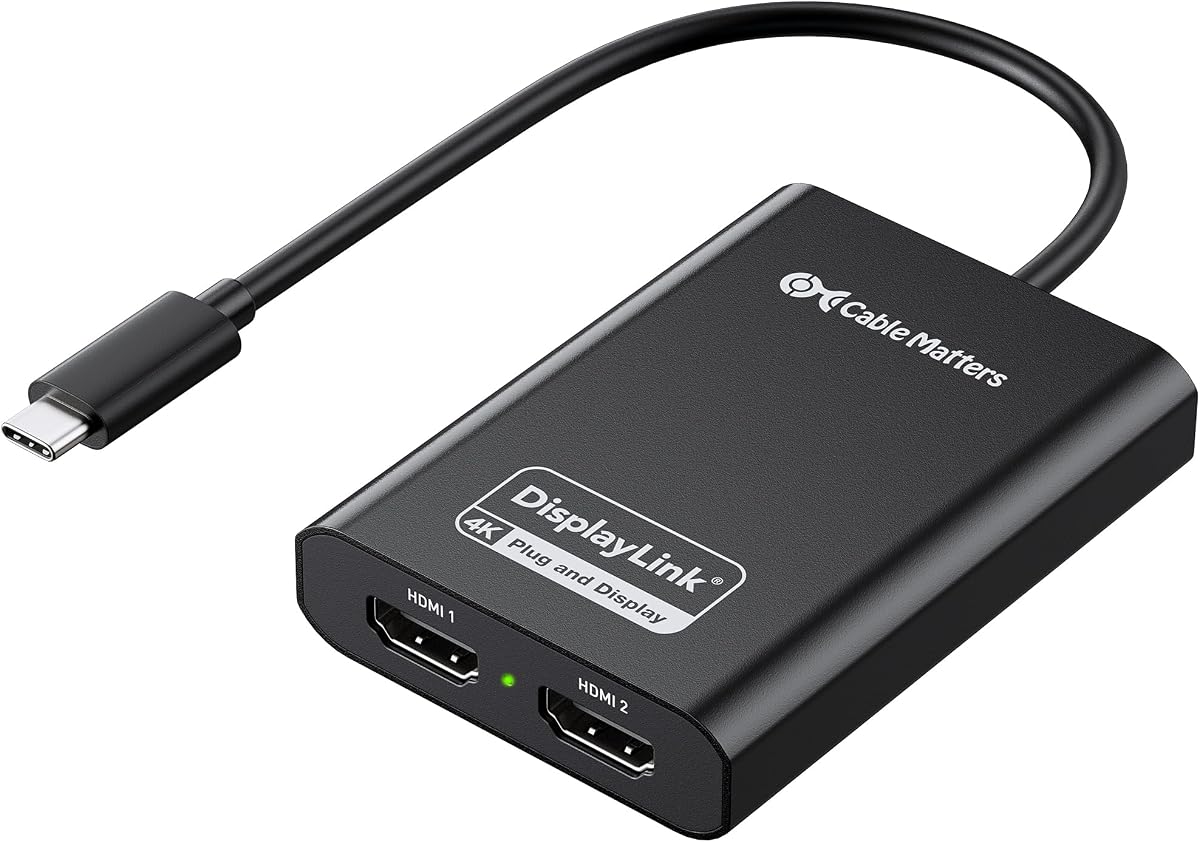
The Cable Matters USB C to Dual HDMI adapter is certified for reliable dual display performance on both Windows and Mac systems. It has a 4.0 rating for its durable design and ability to bypass single-screen limits.
We may earn a commission when you buy through this link, at no additional cost to you.
Its aluminum housing ensures heat dissipation during long sessions, maintaining stable performance. This adapter is ideal for creative workflows and streaming setups that require true extended desktop modes.
Mac users must grant specific screen recording permissions for proper functionality. While performance depends on CPU specs, the certified technology ensures consistent quality across supported devices.
Buy this adapter for reliable dual-monitor expansion. Its certification and durable build make it a safe choice for professional workstations needing consistent visual performance.
DisplayLink certification guarantees optimized performance, reducing compatibility issues with your existing hardware.
The aluminum housing keeps the adapter cool, ensuring long-term stability even during heavy multitasking sessions.
We may earn a commission when you buy through this link, at no additional cost to you.
The Sonnet DisplayLink Dual 4K HDMI Adapter supports high refresh rates for smoother motion across two external displays. It holds a 4.4 rating for its capability to handle higher resolutions and its inclusion of extra adapters.
We may earn a commission when you buy through this link, at no additional cost to you.
This adapter works well with M1 Pro Max and Ultra Macs, ensuring compatibility with more powerful chips. It allows for expanded work areas useful for browsing and application multitasking.
While it supports audio, it is less versatile than hubs with extra ports. However, its focus on display quality and support for high refresh rates makes it a strong option for visual work.
Choose this adapter for Mac users needing high-performance displays. The compatibility with advanced chips and high refresh support ensure fluid visuals for demanding professional applications.
Support for higher refresh rates ensures smoother scrolling and motion for comfortable extended work sessions.
Compatible with M1 Pro and Max, this adapter scales well for users with high-performance Mac laptops.
We may earn a commission when you buy through this link, at no additional cost to you.
Selecting the right Displaylink adapter requires considering several technical factors to ensure compatibility with your laptop and monitor setup.
Check if the adapter supports 4K at 60Hz for sharp visuals. Lower refresh rates like 30Hz can cause screen flicker during mouse movement. For professional work, higher resolution support is essential to maintain clarity on large external screens.
Prioritize adapters that explicitly state 4K 60Hz support to ensure smooth and clear viewing experiences.
Most Displaylink adapters require driver installation to function properly on macOS and Windows. Some models support ChromeOS without drivers, which simplifies setup for cloud-based users. Always verify OS compatibility before purchasing to avoid unexpected software hurdles.
Look for models with well-documented driver tools to streamline installation and reduce troubleshooting time.
Verify whether the adapter uses HDMI, DisplayPort, or USB-C connections based on your monitor inputs. Some models offer hybrid cables for USB-A and USB-C compatibility, adding versatility for older laptops. Matching port types avoids the need for additional converters.
Choose adapters with ports matching your existing monitors and laptop to ensure direct and stable connectivity.
Adapters with USB-C Power Delivery can charge your laptop while driving external displays. This feature reduces cable clutter and keeps your device powered during extended use. Look for at least 60W to 100W support depending on your laptop needs.
Select an adapter with sufficient wattage to prevent battery drain during long work sessions with external displays.
Metal aluminum housings dissipate heat more effectively than plastic designs, maintaining stable performance over time. Compact portable designs are crucial for travelers. Invest in durable materials to ensure longevity and reliability in daily office or travel use.
Opt for adapters with metal bodies to ensure they stay cool and perform consistently under heavy loads.
Ensure the adapter works with your specific operating system and processor generation. Mac M1 and M2 chips often require specific drivers to support dual screens. Windows and ChromeOS systems typically offer more plug-and-play flexibility.
Verify system requirements against your device specs to guarantee seamless operation without unexpected compatibility issues.
Lifetime technical support adds value for business users who may encounter complex connectivity issues. Brands with dedicated North American teams can resolve problems faster. Good documentation also helps users set up their displays correctly.
Choose vendors with strong support reputations to ensure help is available if technical challenges arise.
A minimum of one year warranty is standard, but premium models often offer lifetime coverage. Extended warranties provide peace of mind for hardware that experiences high daily usage. Longer terms indicate manufacturer confidence in product durability.
Prioritize products with extended warranty terms to protect your investment against potential hardware failures.
Connect the adapter directly to a USB 3.0 USB-C or Thunderbolt port on your laptop. Avoid using hubs or extension cables as these can reduce bandwidth and cause display instability.
Install the latest DisplayLink drivers from the official website before connecting monitors. This ensures proper handshake between the adapter and your operating system for best performance.
Keep the adapter cool by placing it in a well-ventilated area rather than inside a closed laptop bag when in use. Periodically check that all ports remain clean and free of dust.
Most Displaylink adapters are not recommended for gaming because they use CPU resources for video processing rather than dedicated GPUs. This results in lower frame rates and latency which are unsuitable for fast-paced games.
Displaylink technology uses compression and software processing to drive displays, which requires specific drivers to communicate with your operating system. These drivers handle the data conversion needed for external screen output.
While some adapters support up to six monitors, standard dual display models are limited to two screens. You would need multiple adapters or a specialized docking station to expand beyond two external displays simultaneously.
Displaylink adapters generally do not support HDCP protected content like Netflix or Disney. You will see black screens when trying to stream paid video content on displays connected through this technology.
Yes, most adapters in this guide support M1 and M2 MacBooks provided you install the DisplayLink Manager app. These devices bypass the native single display limit imposed by Apple on base chip models.
Check your laptop manufacturer specs for the maximum external display resolution supported via your USB-C ports. If unsure, use the DisplayLink software to test different resolution settings and find the optimal configuration.
The top picks in this guide highlight diverse options catering to different needs such as budget flexibility or premium build quality. Each model offers reliable performance for expanding your workspace beyond the limitations of single-screen laptops.
Prioritize resolution support driver compatibility and build quality when making your decision. Selecting an adapter with the right ports and features ensures smooth integration into your existing office or home setup.
Prices and availability can change frequently so check current listings before purchasing. Ensuring compatibility with your specific device model is crucial for a successful multi-monitor setup experience.